Repeato
  • Features
  • Pricing
  • Blog
  • Resources
  • Get for free
  • Getting started
  • Running test batches
  • Reporting
  • Test devices
  • Screenshot testing
  • Test exception handling
  • Tags
  • Automate switching devices
  • Advanced Configuration
  • Test workspaces
  • Advanced testing techniques
  • JavaScript API
  • Share tests within the team
  • Continuous Integration Support

Reporting

Table of contents
  1. Exporting a single test run result as PDF
  2. Generating a batch run report
  3. Performance metric reports
  4. Exporting a test result as a Jira issue
  5. Automatically generating reports after each batch run
  6. Automatically posting reports to Slack after each batch run

You can export your test results as PDF, batch run reports, or Jira issues.

Exporting a single test run result as PDF

For each test run, you can easily create a pdf report. The report will contain all the relevant information for the developer to fix an issue.

Android test report button

Click the “Reports” icon in the header section of your test to generate a PDF report

This is an example of a Repeato report:
demo test automation report pdf

Generating a batch run report

You can export a whole test batch run as an HTML report.

The quality (and thus the file size) of the report can be configured in the settings of Repeato.

The reports contain a filterable and searchable list of tests:

demo batch run export

For each test, Repeato records and stores a history of profiling information. This can help to detect regressions in your app.

test run duration profile information

Performance metric reports

Repeato batch run reports contain following performance metrics:

  • App startup time: The time your app took to start. If this increases significantly, this might indicate that a piece of code is creating additional workload. The reason could be a new library that was integrated or some other piece of code that runs slow.
    👉 Tip: Ask a developer if the workload can be deferred to a later point during or after app startup, so the user experience stays good.
  • Test run duration: The time this test took to complete. If test runs become slower, there could be several reasons for it:
    1. Your app is fetching data from a server, and the server is slow. 
      👉 Ask the dev team what can be done about it
    2. Your app is fetching data from a server, and the internet connection is bad.
      👉 Talk to the dev team about the user experience of users with low bandwidth internet connections, maybe you can improve the UX via caching, or lazy loading content)
    3. Some process inside the app is taking longer than usual.
      👉 You should definitely mention it to the dev team; they might not be aware of it.
  • Skipped frames count: When the app is doing too much work at once, there is a potential for it to freeze. This results in a bad UX: the users can feel that the app is getting stuck and doesn’t respond smoothly. 
    👉 You should definitely mention it to the dev team; they might not be aware of it.

Exporting a test result as a Jira issue

Before publishing to Jira, it’s necessary to create a connector:

Click on “Settings” in the main menu. Then click the + button next to “Connectors”. Then enter all the information needed for connecting to Jira:

Publishing android test results to Jira

Hit “Connect to Jira” and you are ready to go.

After the test run, Repeato will have all the interesting metadata ready for your report: App version, install and update time, device model, and Android or iOS version.

Click on the report icon in the header of your test to export test results as Jira issues

Android test report button

For each of the executed test steps you can select a screenshot that gets attached to the Jira issue:
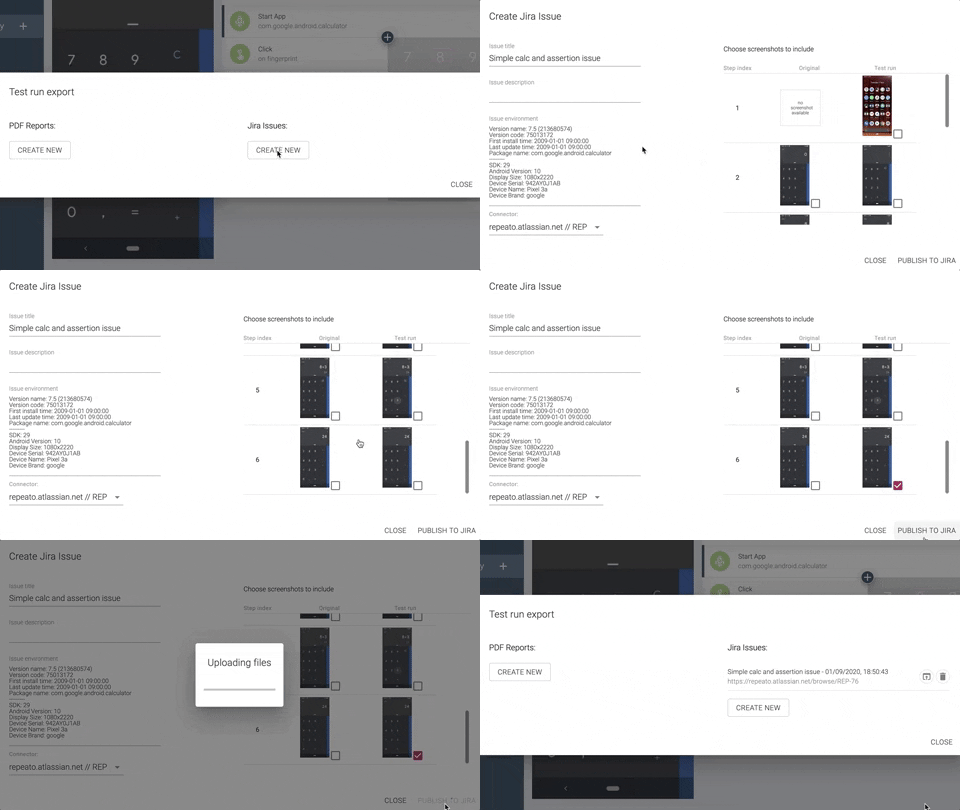
Publishing Android test results to jira

The left column of screenshots shows the ones taken during recording of the test. The right column shows the screenshots taken during test execution.

Automatically generating reports after each batch run

This is possible via the “Advanced Configuration”. First navigate to “Workspace” (Repeato 1.8 and before: Select “Settings”) and open the “Advanced Configuration” panel:
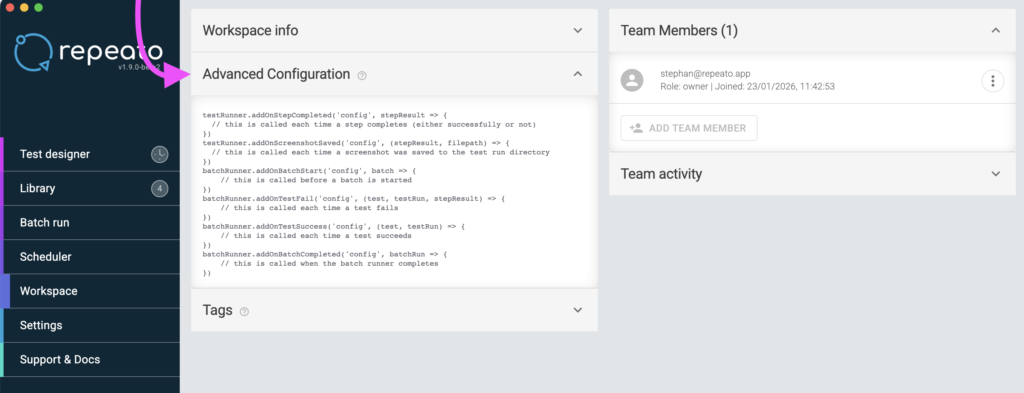
Then click the configuration code block. An editor will be shown. Choose “Some code examples”:
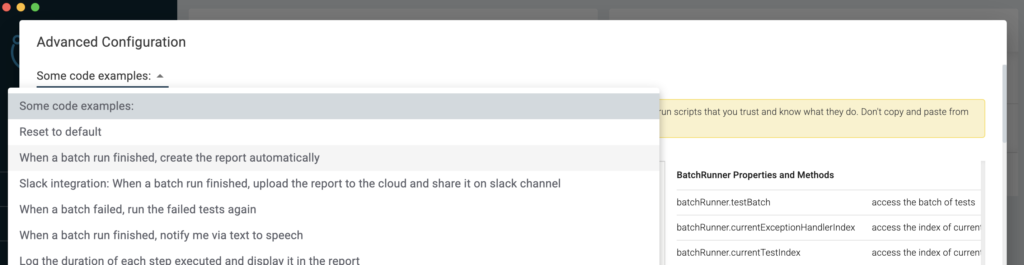
Select “When batch run finished, create report automatically”, then click “APPLY” to save and close the dialog.

Automatically posting reports to Slack after each batch run

Repeato provides example code on how to configure this behaviour.

  1. Open the “Advanced configuration” (Main menu “Workspace” (Repeato 1.9) or “Settings” (Repeato 1.8))
  2. Select “Slack integration: When a batch run finished, upload the report to the cloud and share it on slack channel” from the list of examples.
  3. Create a Slack webhook URL:
    1. Create a new app at https://api.slack.com/apps,
    2. Enable “Incoming Webhooks” in the settings
    3. Click “Add New Webhook to Workspace”. 
  4. Copy the webhook URL, switch back to Repeato-Studio
  5. Replace the webhook URL in the source code
  6. Click “APPLY” and run your batch.

For reference, here is the example code. The webhook URL needs to be configured in the first line:


const WebhookUrl = 'https://hooks.slack.com/services/aaa/bbb/ccc' // <-- REPLACE WITH YOUR WEBHOOK URL!

batchRunner.addOnBatchCompleted('config', async (batchRun) => {
  const reportPath = await batchRunner.createBatchRunExport()
  log('Created report: ' + reportPath)

  log('Uploading report...')
  const reportUrl = await batchRunner.uploadReport(reportPath, new AbortController())
  log('Uploaded report: ' + reportUrl)

  let message = batchRun.wasSuccessful ?  
                  \`✅ Repeato batch run finished successfully\` : 
                  \`❌ Repeato batch run failed: \${JSON.stringify(batchRun.stats)}\`
                  
  message += '\\n' + reportUrl

  await axios.post(WebhookUrl, {text: message}, {
    headers: { 'Content-Type': 'application/json' }
  });
})

Repeato

  • Home
  • Pricing
  • Blog
  • FAQ
  • About us

Documentation

  • Getting started
  • Test exception handling
  • Advanced testing techniques
  • JavaScript API
  • Release notes

Support

  • Support & Resources
  • Documentation
  • Book a demo
  • Contact

Legal

  • Imprint
  • Terms & Conditions
  • Privacy policy
  • Cancel subscription
Repeato Reviews
[activecampaign form=5 css=0]
Manage Cookie Consent
To provide the best experiences, we use technologies like cookies to store and/or access device information. Consenting to these technologies will allow us to process data such as browsing behavior or unique IDs on this site. Not consenting or withdrawing consent, may adversely affect certain features and functions.
Functional Always active
The technical storage or access is strictly necessary for the legitimate purpose of enabling the use of a specific service explicitly requested by the subscriber or user, or for the sole purpose of carrying out the transmission of a communication over an electronic communications network.
Preferences
The technical storage or access is necessary for the legitimate purpose of storing preferences that are not requested by the subscriber or user.
Statistics
The technical storage or access that is used exclusively for statistical purposes. The technical storage or access that is used exclusively for anonymous statistical purposes. Without a subpoena, voluntary compliance on the part of your Internet Service Provider, or additional records from a third party, information stored or retrieved for this purpose alone cannot usually be used to identify you.
Marketing
The technical storage or access is required to create user profiles to send advertising, or to track the user on a website or across several websites for similar marketing purposes.
Manage options Manage services Manage {vendor_count} vendors Read more about these purposes
View preferences
{title} {title} {title}